
Overkeep
PC care app · v1.0.0 · free to useOverkeep 1.0 for Windows 10 and 11. A calm, honest PC care app: one health check explains what's slowing your PC down in plain words, Overkeep fixes only what it can prove makes a difference, and every change can be undone. It also watches out for tech-support scams, frees your PC up while you game, and tells you plainly whether your files are backed up. No inflated "1,284 problems found", no registry-cleaner snake oil, and no upsells.
Overkeep is free, with every feature included. If it saved you a trip to the repair shop, you can buy me a coffee ☕
What you need
- 64-bit Windows 10 or 11
- That's it: no account and no sign-up
- Optional: administrator rights to turn on the helper service
What Overkeep does
Each fix shows you a preview first, nothing is ticked for you unless it's plain junk, and every change can be rolled back from the Undo center.
Health check and control center
- A score from 0 to 100. A finding only lowers it when it has a measurable effect, in bytes or seconds
- Each finding has its own button: clean it up, switch it off at startup, or open the details
- Live tiles on Home for drive space, memory, CPU, startup apps, the next care run and the last restart
Storage cleanup
- Temp files, crash reports, the thumbnail cache and the Edge, Chrome and Firefox caches, with each size shown first
- Scan a whole drive for junk, old installers and files of 500 MB or more
- Empty only Recycle Bin items older than two weeks
- Cleaned files go to the Undo center, so you can put them back
Startup and speed
- Every app that starts with Windows, with the seconds Windows measured it adding to boot
- Switch apps off the same way Task Manager does, so nothing is deleted
- Power plan, Game Mode, Storage Sense and transparency, each explained
- "Why is my PC slow?" names the culprit in one sentence
Scam Shield
- Lists every remote-control program (AnyDesk, TeamViewer, ScreenConnect and more), when it arrived and whether it's running
- "Someone called me about a virus": a calm panic button that ends every remote session
- Turns off the browser notifications behind fake "your PC is infected" pop-ups
- Checks a download's source, signature and Defender scan, and an optional paste guard warns about fake "paste this into Run" tricks
Gaming
- Game boost frees the PC while you play and puts everything back when you stop, each step with its own switch
- Auto boost for the games you pick, and off for every game until you turn it on
- Checks refresh rates, Game Bar recording and mouse acceleration, and clears old shader caches
- No RAM "boosters" or timer tweaks: only changes that really help
Peace of mind
- A security checkup in plain English: virus protection, firewall, SmartScreen, BitLocker and more
- Where are my files? Whether Desktop and Documents are on this PC or in OneDrive, and whether anything backs them up
- Why Windows Update is stuck, and whether your Windows still gets security updates
- A one-click report for whoever helps you with your PC, with what needs a look first
App care
- Every installed app with its size and install date, uninstalled by its own uninstaller
- Leftover folders after an uninstall, moved to the Undo center
- Points out driver updaters, registry cleaners and fake cleaners, with a plain reason
Privacy and annoyances
- Clear browser history and cookies and Windows' recent files list, with nothing ticked for you
- Switch off lock screen ads, "Let's finish setting up" nags, tips and suggested apps
- Put back restores each one exactly as it was
Hardware health
- Drive health, SSD wear and temperatures, from Windows' own readings
- Battery health on laptops: what a full charge holds now against new
- Old driver versions Windows kept, removed only after a backup
Undo center and care plan
- Every cleanup is listed with Put back, and freed for good after 30 days
- Light, Balanced or Deep care once a week, on the day and hour you pick
- One short weekly summary from Ozzy instead of nags
- Privacy, startup apps and installed apps are never changed on a schedule
Overkeep is free to use under the Overkeep Freeware License, but it isn't open source, and copies should only be shared by linking to this page. It's provided as is, with no warranty. Overkeep shows you what it will change first and keeps an undo for its changes, but some steps, like emptying old Recycle Bin items or freeing the Undo center, can't be undone, so read what a fix does before you apply it.
What Overkeep won't do
- Delete without askingNothing is removed without a preview, and cleanups go to the Undo center first.
- Scare youNo issue counts that aren't backed by a real, measurable effect.
- Touch your stuffProtected lists keep it away from system files, your documents and anything you pin.
- Sell you anythingNo bundled software, no ads, no paid tiers and no selling your data.
- Start things on its ownAuto boost, the care plan and the paste guard stay off until you turn them on.
- Weaken your securityMemory Integrity, Defender and the firewall are explained, never switched off.
Questions about Overkeep
Can't find yours? Email support@bitsbybm.com.
Can Overkeep break my PC?
Overkeep is built not to. It never touches Windows' system folders or the registry the way "registry cleaners" do, it shows what it will change before it changes it, and cleaned files go to the Undo center instead of being deleted, so Put back brings them back. Settings it switches, like startup apps and Windows annoyances, can be switched back the same way.
A few steps are final and say so: emptying old Recycle Bin items, Free now in the Undo center, and uninstalling an app. It's still provided as is, under the Overkeep Freeware License.
What does Overkeep send over the internet?
- A check of this site for a newer version, about once a day (turn it off in Options › Updates). It sends nothing about your PC
- The new version's download from this site, only when you press Update now
That's all. There's no account, no tracking and no analytics. Settings and the error log stay in %APPDATA%\Overkeep.
Why does Windows say "Windows protected your PC"?
Overkeep is code-signed: right-click Overkeep.exe, then Properties › Digital Signatures shows Bernardo Moreno as the publisher. SmartScreen still warns about new apps until enough people have run them. Click More info, then Run anyway.
Installer or portable zip: which should I pick?
Pick the installer unless you have a reason not to. It adds a Start menu entry and an uninstaller, can add the helper service, and its updates install with one click and one Windows permission prompt. The portable zip is for when you can't or don't want to install anything: unzip it anywhere and run Overkeep.exe. It asks you to accept the license the first time it starts, and can't run the helper service.
What is the Overkeep helper service?
A small Windows service the installer can add, for the few jobs that need administrator rights: cleaning old Windows Update downloads, switching startup apps that start for everyone, reading SSD wear and temperatures, ending remote sessions from the panic button, removing old drivers after a backup, pausing indexing and updates during a game boost, and resetting a stuck Windows Update.
It's Overkeep.exe itself, run from Program Files where only administrators can change it. It only answers Overkeep on your own PC, never the network, and the jobs that change the system are for members of the Administrators group only. Turn it on or off in Options › Helper service.
Someone on the phone says my PC has a virus. What do I do?
Hang up. Microsoft, your bank and your internet provider never call about viruses or ask you to install anything. Then open Overkeep and click Someone called me about a virus on Home. It ends every remote session after one confirmation, lists the remote-control programs on your PC so you can remove the one they had you install, and explains what to check next.
How do updates work?
About once a day Overkeep checks this site for a newer version. When there is one, a banner shows what's new. Update now downloads it from this site, checks its SHA-256 and that it's signed by Bernardo Moreno, then installs it; your settings stay. If anything doesn't check out, nothing changes. Overkeep never downloads or installs anything until you press Update now. Turn the check off in Options › Updates.
Which versions of Windows does it run on?
64-bit Windows 10 and 11.
How do I remove Overkeep?
Installed: open Windows Settings › Apps, find Overkeep and click Uninstall. It removes Overkeep, its helper service and its Start with Windows entry, and asks whether to delete your settings too. Files in the Undo center stay where they are until you delete them.
Portable: if you turned on Start with Windows, turn it off in Options › General first. Then click Exit in the ⋯ menu and delete the folder with Overkeep.exe. To remove your settings too, delete %APPDATA%\Overkeep. Check the Undo center first if there's anything you want back.
Is it free?
Yes, with every feature included and no paid tier. If it helped, you can buy me a coffee.
Ozzy keeps an eye on things
 Saying hello
 Cleaning up
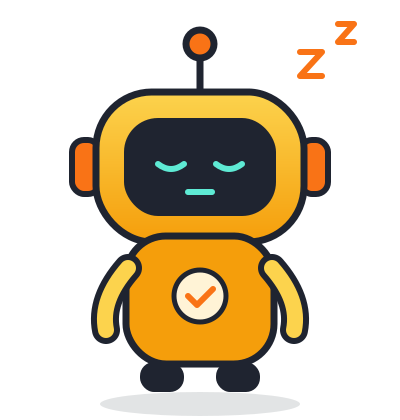 Resting while your PC is fine
Version history
Every public release of Overkeep, newest first.
-
Overkeep 1.0.0
latest- First public release, code-signed, with an installer and a portable zip
- Health check with a 0 to 100 score, a live control center, storage cleanup, startup apps and speed settings
- Scam Shield: remote access check, the "Someone called me about a virus" button, fake virus alert cleanup, a download checker and an optional paste guard
- Gaming: Game boost and per-game Auto boost, with everything put back when you stop
- Peace of mind: security checkup, where are my files and backups, Windows Update fixer, Windows version support and a report for whoever helps you with your PC
- App care with junk and fake-cleaner warnings, Privacy with Windows annoyance fixes, Hardware health with battery health and old drivers
- Undo center, weekly care plan, the optional helper service and one-click updates from this site